Reusable content library
Note
We are in the process of adding a step block field to the Option content type to allow us to build these out after testing. We will then update the front-end view to use this field when populated and over time deprecate the original steps field. We are also working on integrating the Step library with our Airtable integration.
The reusable content library allows us to take paragraphs items that normally are limited to the specific node they are included in and re-use them in other nodes (“Library steps”).
In the case of Debt Help Illinois, the use case is to allow us to re-use steps across options where the step is exactly the same.
A change made to a step in the library is automatically reflected in any content that includes that step.
A change made to a step not in the library only impacts the Option it is included in.
When to use the library
Use the reusable content library when:
a Step will appear in multiple Options
the Step wording must remain consistent across the site
you expect the Step will need future updates and want to update it in one place
it serves as a base step for creating independent steps
Avoid using library steps when:
the Step is unique to one Option
the Step is similar to another step but needs different wording or details
the Step includes content that might change depending on context
Technical Architecture
The reusable content library is built using these Drupal modules:
Paragraphs Library – allows a Paragraph item to be promoted into a reusable library item
Layout Paragraphs – provides a more user-friendly interface for editing Steps, including library items
Entity Usage – allows tracking where a library item is being used
Implementation
Currently, only Steps can be promoted to the library. Once added to the library, it can be used in any option. The list of steps in the library can be found under Content -> Paragraphs.
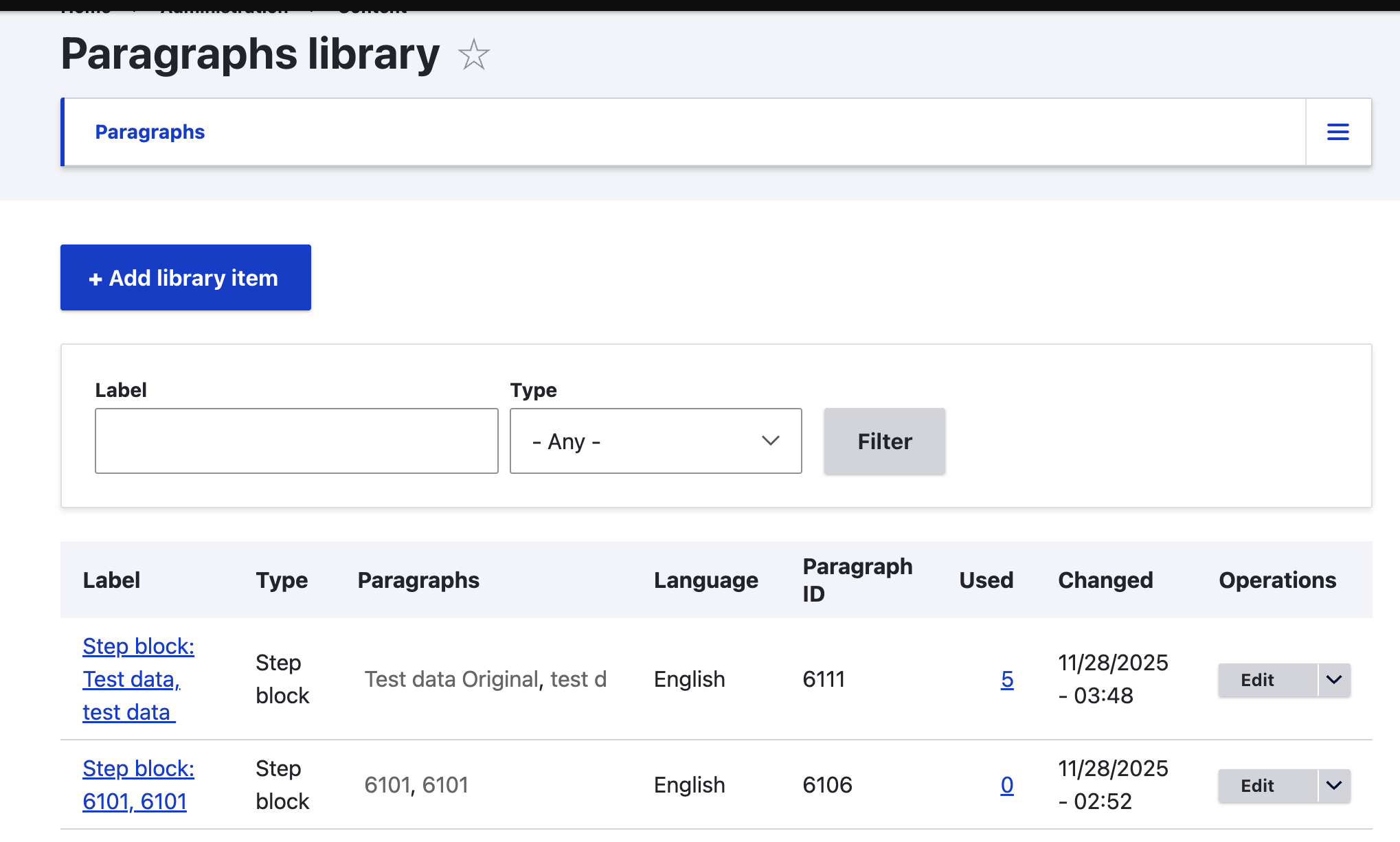
Each library step:
has a unique Label (used internally to identify it in the library)
may also have a Step Title (displayed to users in the Option)
can be tagged to specific debt types and problem types (to support filtering and organization)
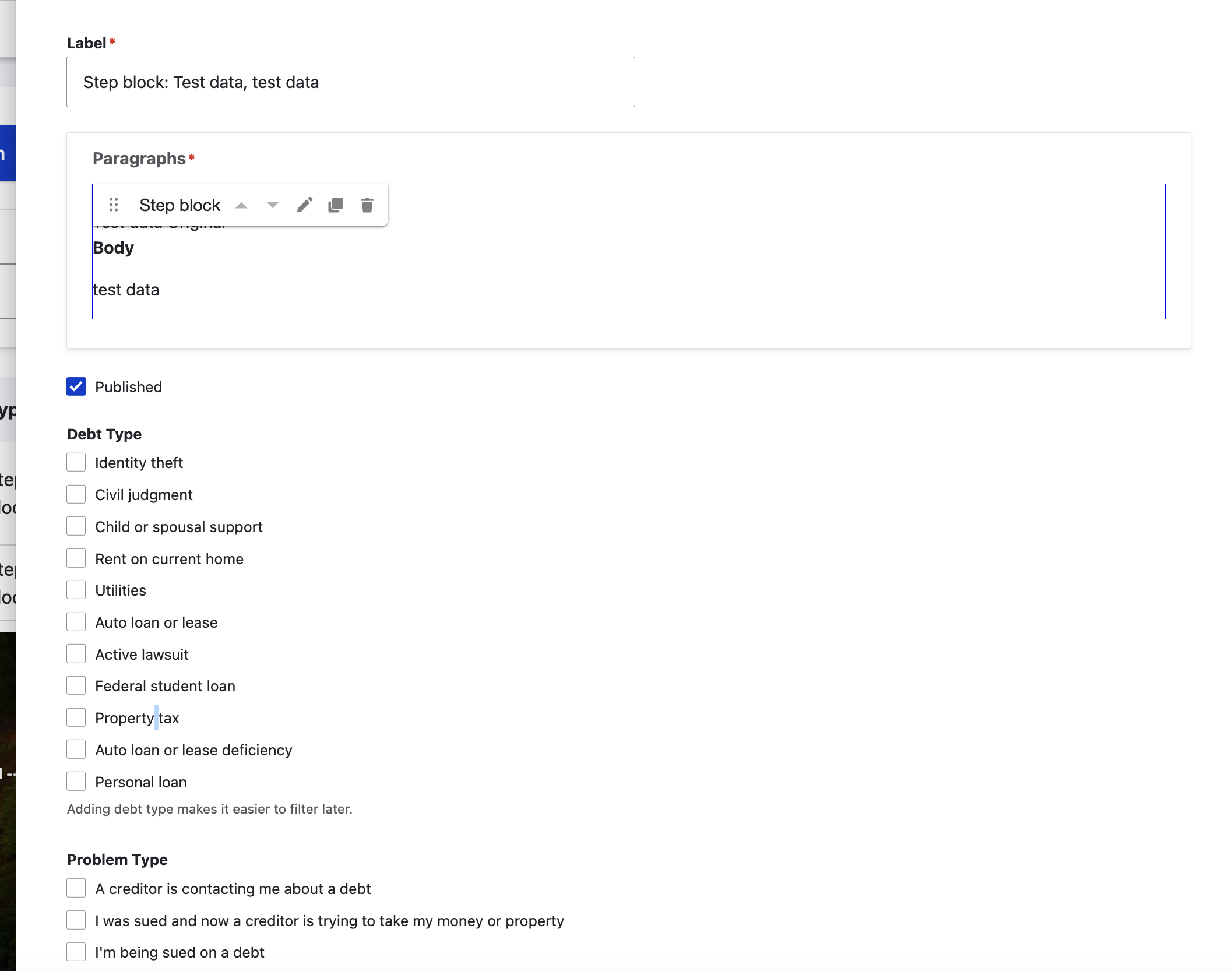
Creating a new library item
If the step does not yet exist
Go to Content → Paragraphs
Click Add library item
Enter a Label (This label is internal and should clearly identify the step for editors.)
Click the + button to open the Create new Step form
Add the Step Title and Body
Click Save
Note
Library items can also be then tagged to specific debt and problem types, to support additional filtering and helps with organization.
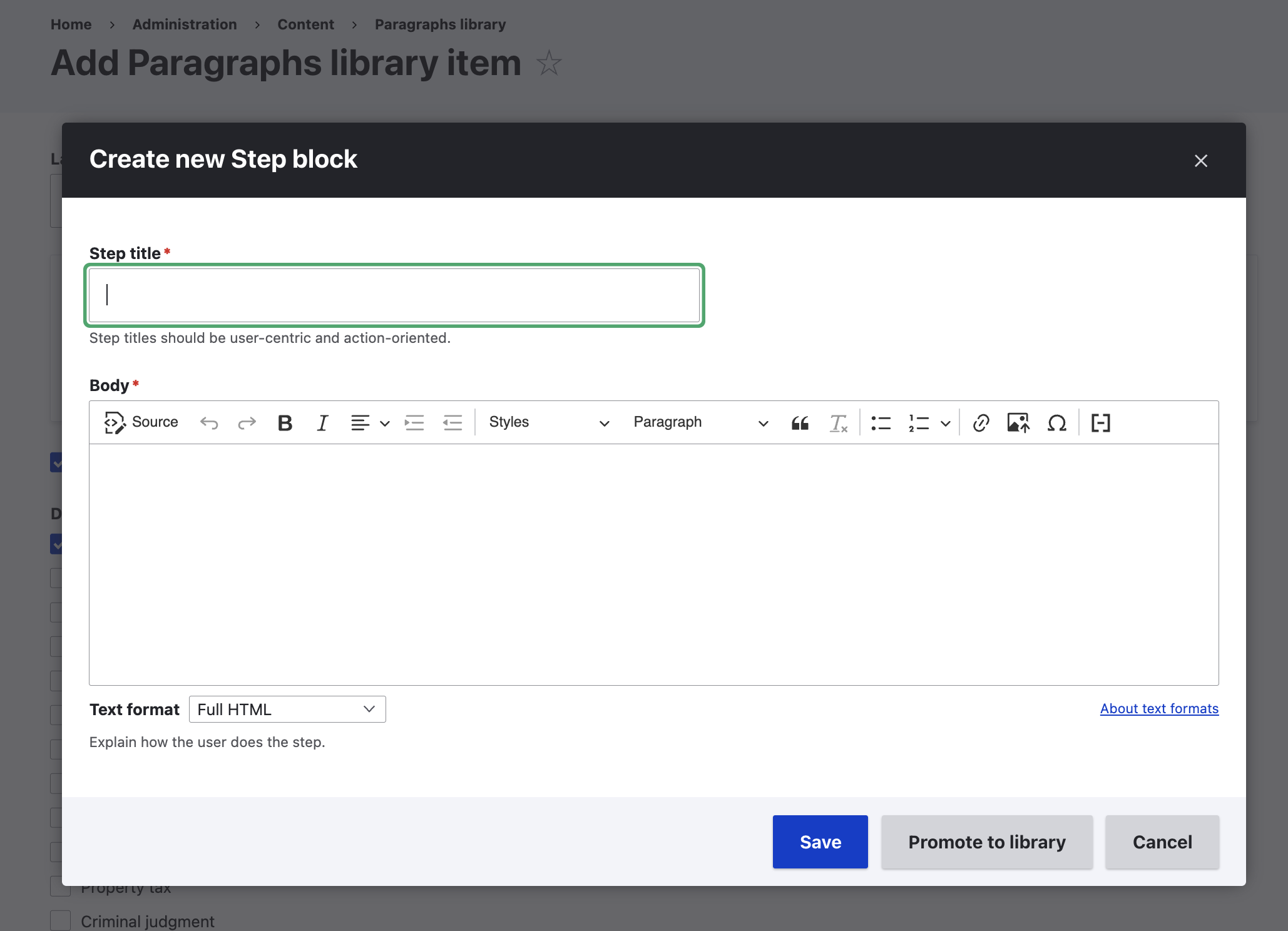
If the step already exists
If a Step already exists inside an Option and you want to reuse it elsewhere:
Open the Option where the Step currently exists
Locate the Step in the Steps layout
Click Promote to library
** This converts the Step into a library step.
Warning
Once promoted, that step becomes shared. Any edits will affect every Option that uses it.
Building content that uses library items
When editing an Option, the Steps layout includes a + button for adding new Steps.
Clicking the + button gives you two choices:
From library (shared reusable step)
Step block (local step)
Step types
Library steps
shared across the site
edits apply everywhere the step is used
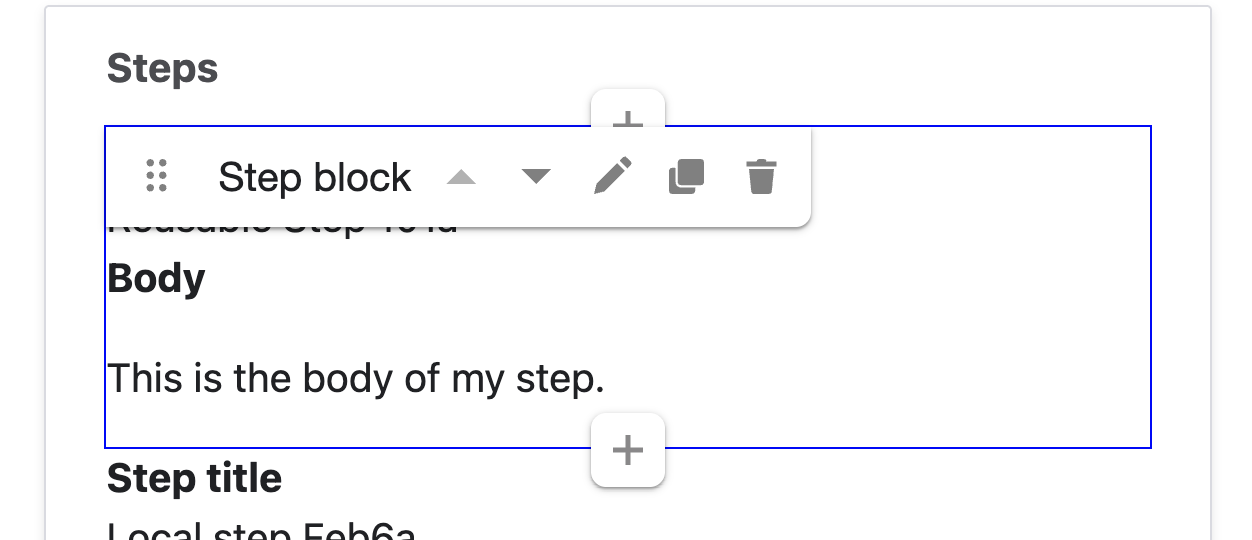
display as From library in the editing toolbar
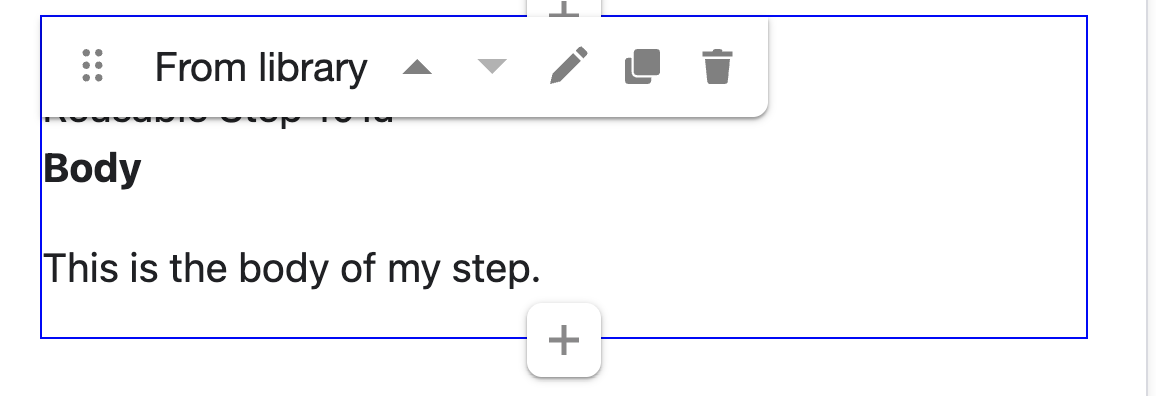
Standalone steps
exist only inside the Option where they are created
edits only affect that Option
display as Step block in the editing toolbar
Converting between library and standalone steps
Converting a library step into a local step
Sometimes you may want to start with a library step but customize it for a specific Option.
To do that:
Add the library step to the Option
Click Duplicate
Delete the original From library step from the Option
Edit the duplicated step
The duplicated step is now a standalone Step block.
Note
The duplicated step is no longer connected to the library. Editing it will not affect other Options.
Converting a standalone step into a library step
If you create a Step block and later realize it should be reusable:
Locate the Step block inside the Option
Click Promote to library
Once promoted, it becomes a shared step and edits will apply everywhere it is used.
Adding a library step to an option
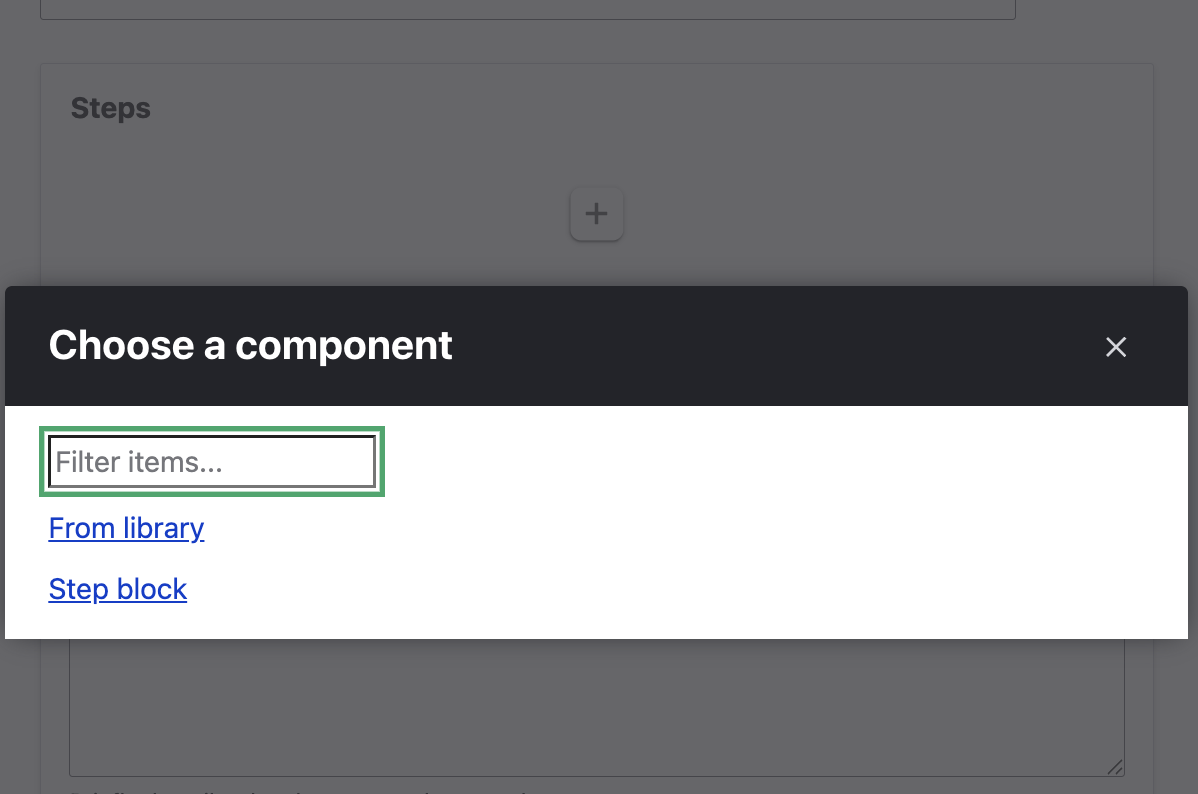
When adding a library step:
Click the + button in the Steps layout
Choose From library
Search for the step using its label
Select the step
Click Save
Note
Library steps will show From library in the editing toolbar.
Once added, the step menu allows you to:
Edit
Duplicate (makes a copy of it local to the Option)
Delete (removes it from the Option but does not remove it from the library)
To edit a library step:
Click Edit, then click Open
OR use the contextual links on the front end to edit the paragraph directly
Warning
Editing a library step updates it everywhere it is used.
Adding a standalone step
Standalone steps show Step block in the toolbar.
Option 1: Create a new standalone step
Click the + button in the Steps layout
Choose Step block
Enter the Step title and body
Save the Option
Option 2: Create a standalone step based on a library step
Add the library step
Click Duplicate
Remove the original library step from the Option
Edit the duplicated Step block
Note
The duplicated step is now a local step and is not part of the library.