LTF Resources
Permissions
Content of type “LTF resources” are accessible based on two roles:
LTF Manager has the ability to view, create, edit, and delete LTF resources. This role is limited to LTF staff. Registered users with an LTF email are automatically given this role.
LTF Grantee has the ability to view any LTF resources. Registered users with an email domain that is on LTF’s grantee list are automatically given this role except for law school clinics. Because law school clinics have a university domain, ILAO must assign the role to those individuals manually.
Note
LTF expanded access and anyone with the pro bono or legal aid role has access to the resources.
Content type
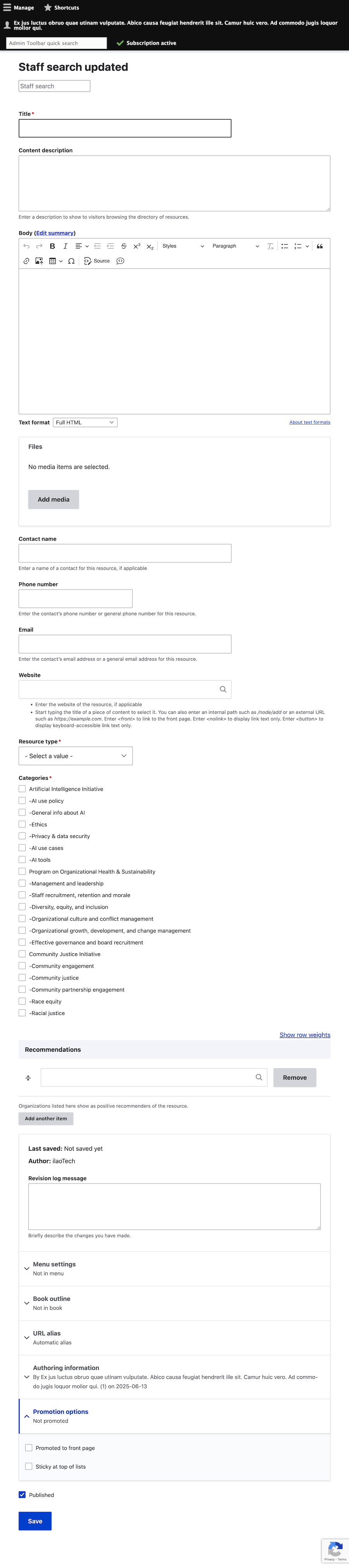
The LTF content type:
Requires a title
Ideally includes a description; the description appears on the cards in the directory page for an initiative
Ideally includes a body; this appears on the resource page.
May include one or more file attachments
May include contact information about the resource, including:
Contact name
Phone number
Email
Website
Requires a resource type. Each resource is limited to a single type. These are maintained in the LTF Resource Type taxonomy.
Requires one or more categories. These are maintained in the LTF Categories taxonomy. The categories determine:
On which initiative page a resource appears (child terms under Artificial Intelligence Initiative for example show on the AI Initiative page)
Which additional resources appear on the resource’s page
Optionally, one or more organizations that recommend (“Mentioned by”) the resource.
Display
Each LTF initiative has:
A directory page that lists all of the resources associated with that initiative
A landing page that describes the initiative
Optionally, an associated webform that allows LTF grantees to suggest resources.
Directory page
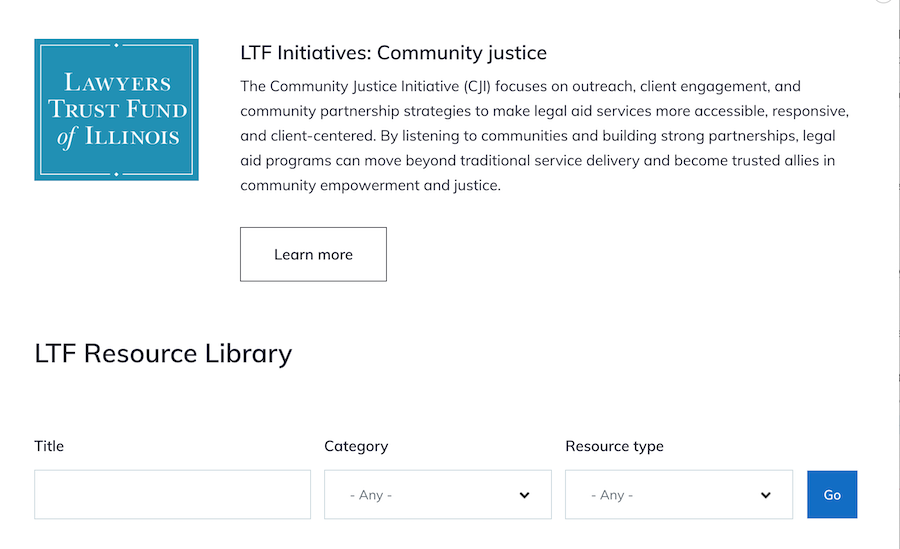
Each directory page includes:
The title of the initiative
An overview of the initiative
A Learn more button that goes to the landing page
Filters for:
Title
Category
Resource type
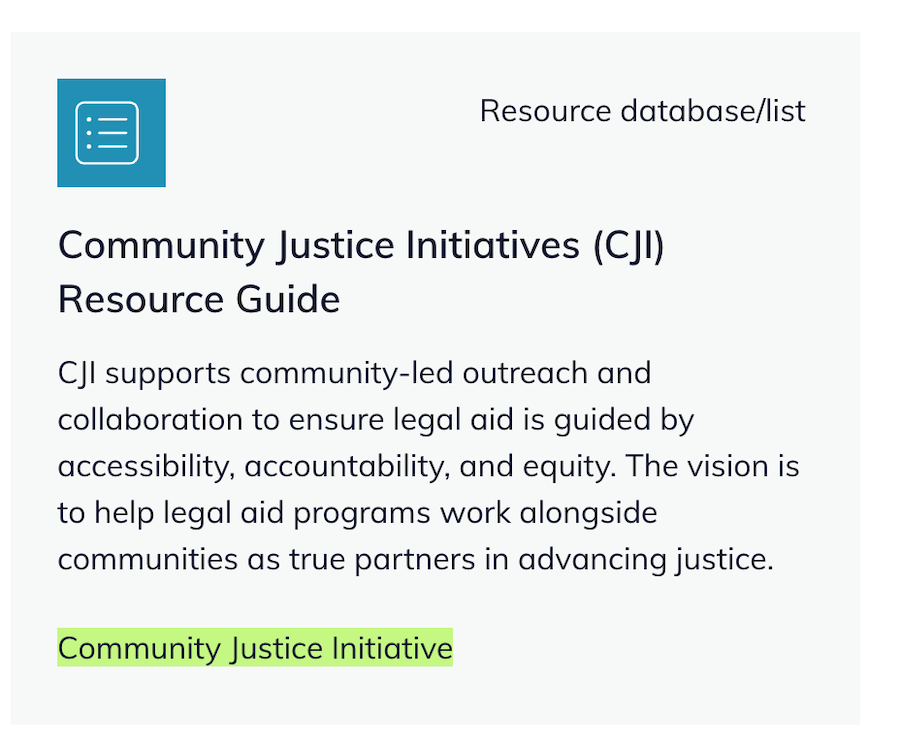
For each associated resource, there is a card that includes:
Resource type name and icon
Title
Description
Category label.
Resource pages
Each resource page includes:
Title
Body
Contact information
Attached files
Each resource page includes:
A block of related resources defined as those that share the same category
The associated webform block (if applicable)
A Mentioned by block that shows which organizations liked a resource (if applicable)
A block about the initiative linking to the Add a suggestion form (for POHS and CJI)
Landing page
Each landing page is a resource page. The page also includes a block that lists each LTF initiative and links back to that initiative’s directory page.
Webforms for suggestions
For initiatives that are accepting suggestions, there is a custom webform that:
Collects the resource information
Is accessible by any LTF grantee
When submitted:
The system checks for a match on title, website, phone number or email address of the resource
If a match is found, the webform is identified as a duplicate and:
An e-mail is sent to LTF that a potentially duplicate submission was received with a link to the add resource form if LTF wants to add the resource manually. The content is not created automatically
If a match is not found:
A new LTF resource is created, mapping the following fields from the webform:
Title
Contact name
Phone number
Email
Website
Resource type
Categories
Mentioned by is updated to include the organization submitting the form
The content is not published by default
An email is sent to LTF with:
A link to edit the newly created content
Instructions to publish if it is appropriate to publish
Note
The webform does not collect a description or allow file uploads. Those can be added manually when editing the created content.
Airtable Integration
For the Artificial Intelligence initiatives, resources are maintained in Airtable and are created and updated nightly over Airtable’s API.